Step-by-Step Instructions:
Step 1: Log in to the Client Area
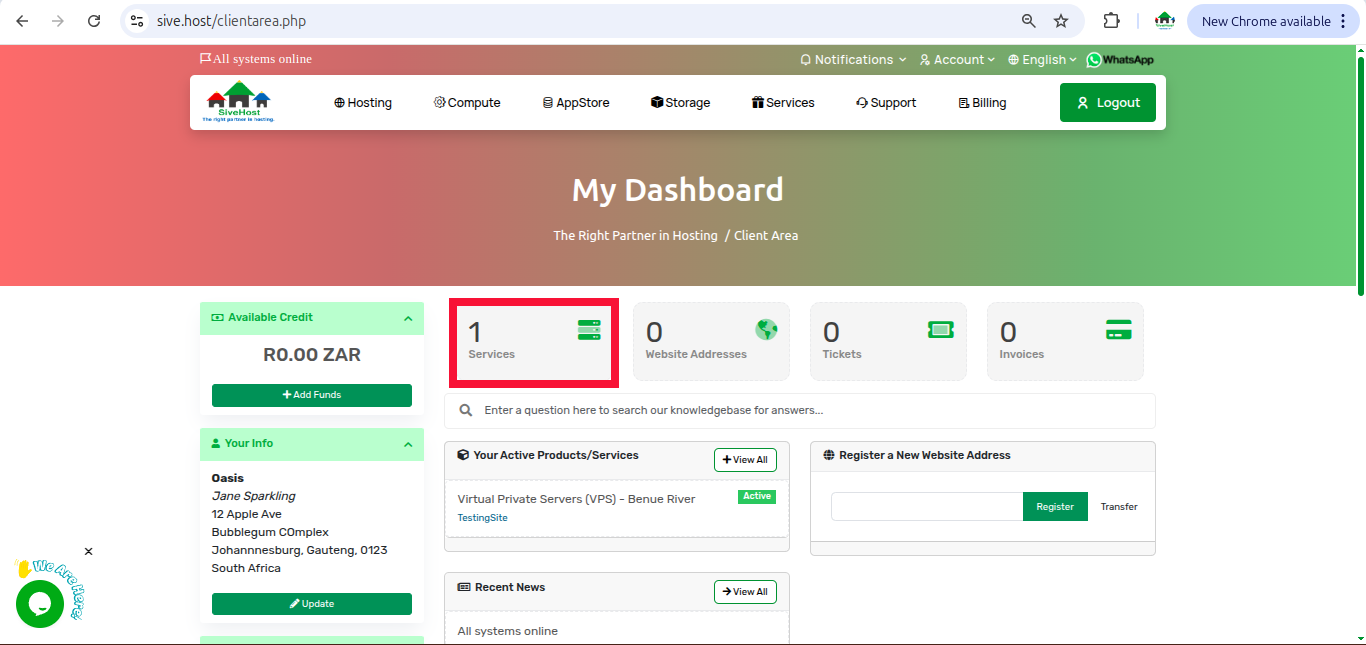
Step 2: Once logged in, on the dashboard, click on services to view all your services
Step 3: On the "product and services" page, locate the sever you want to reinstall click on "Active" under the status of the server.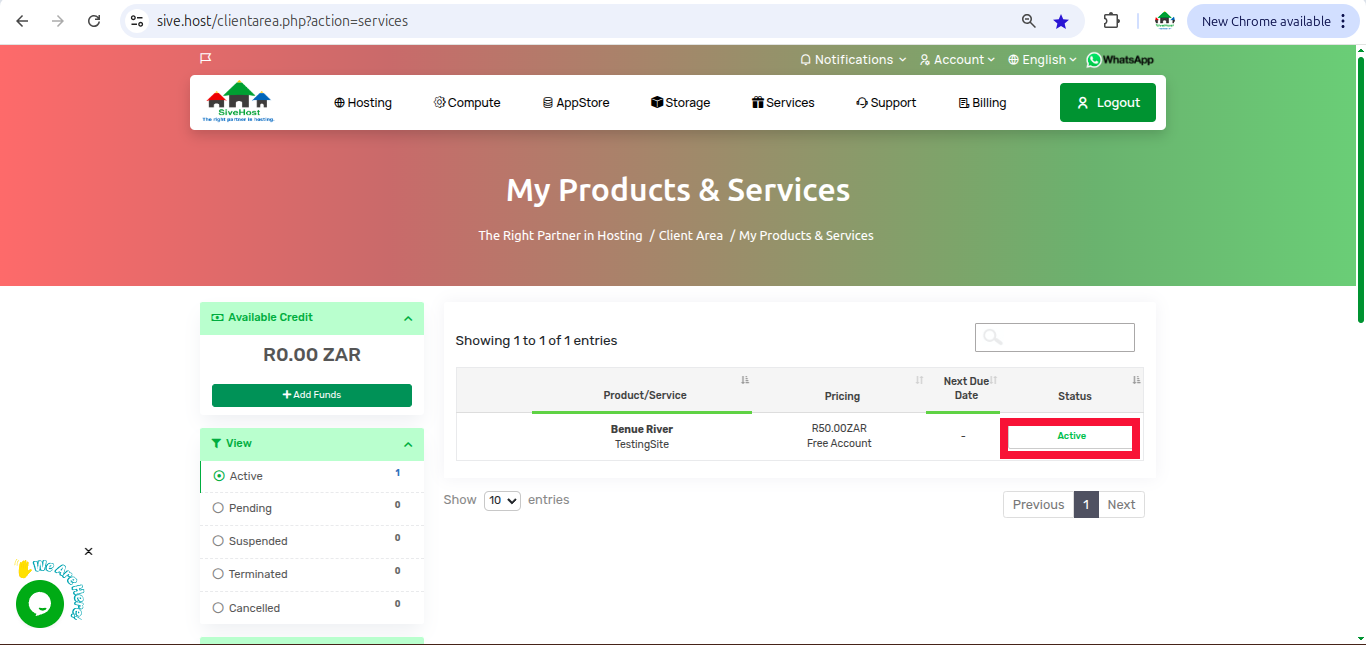
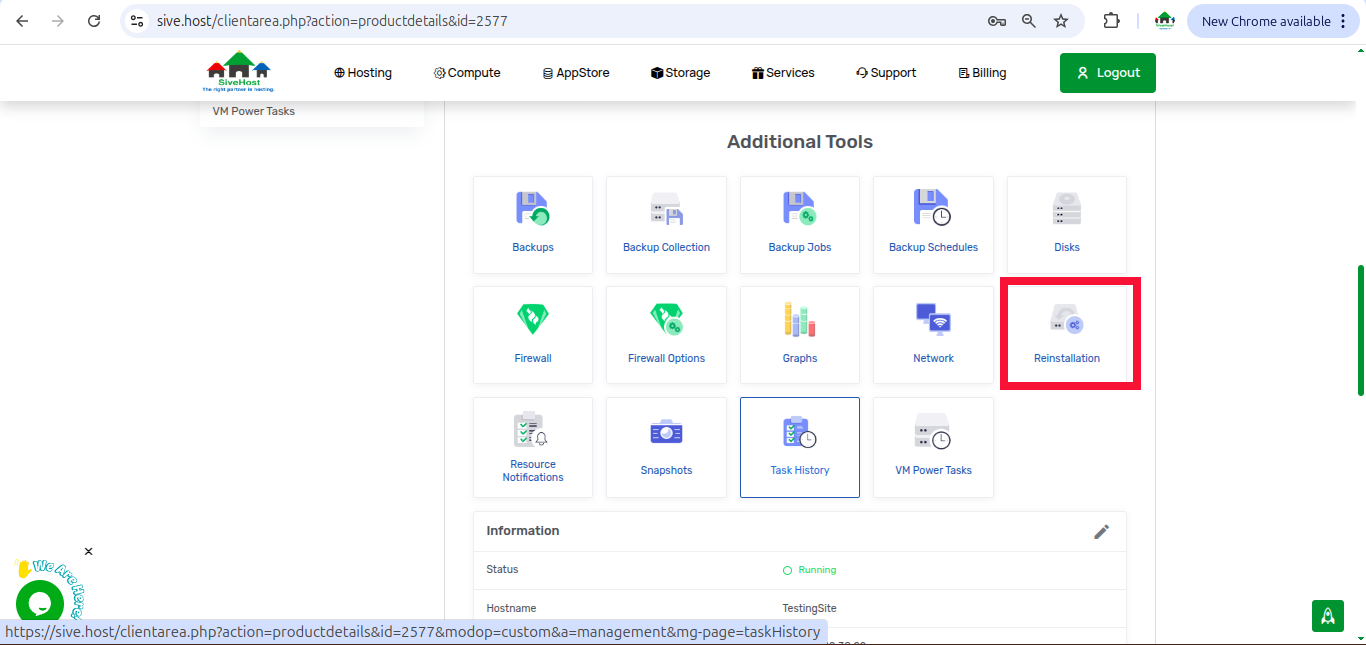
Step 4: On the "Manage Product" page, scroll down to additional tools and click on "Reinstallation"
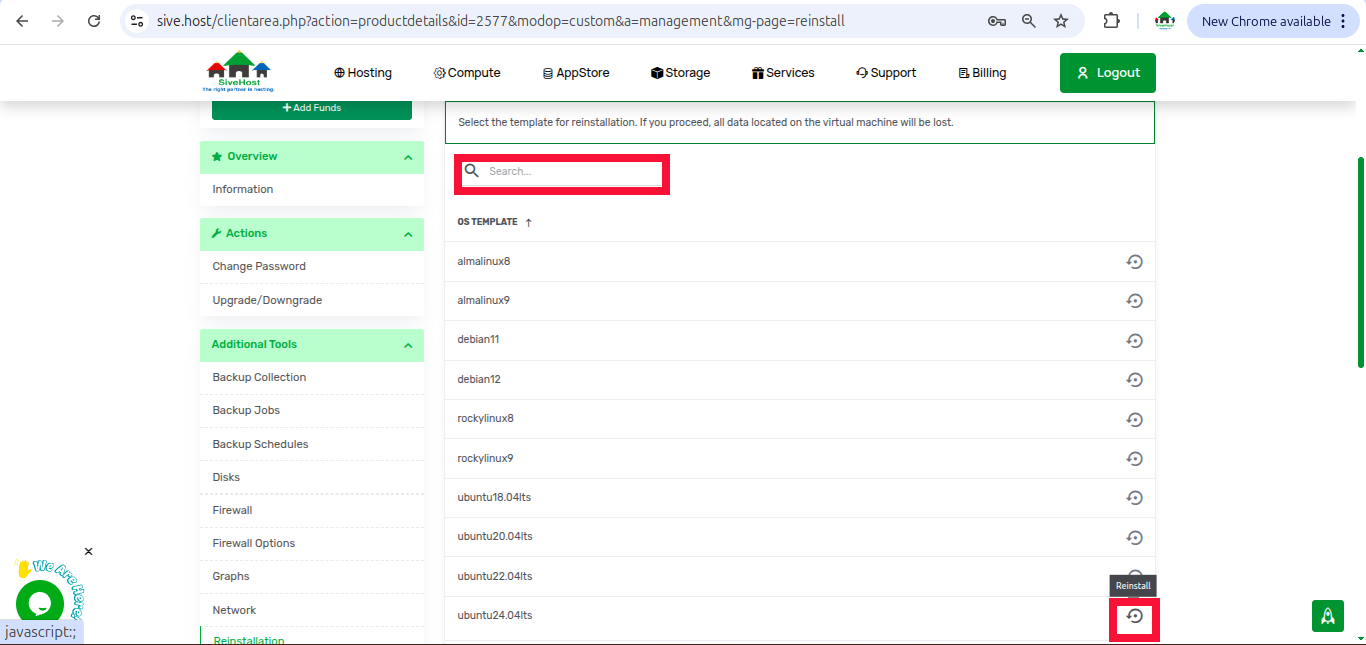
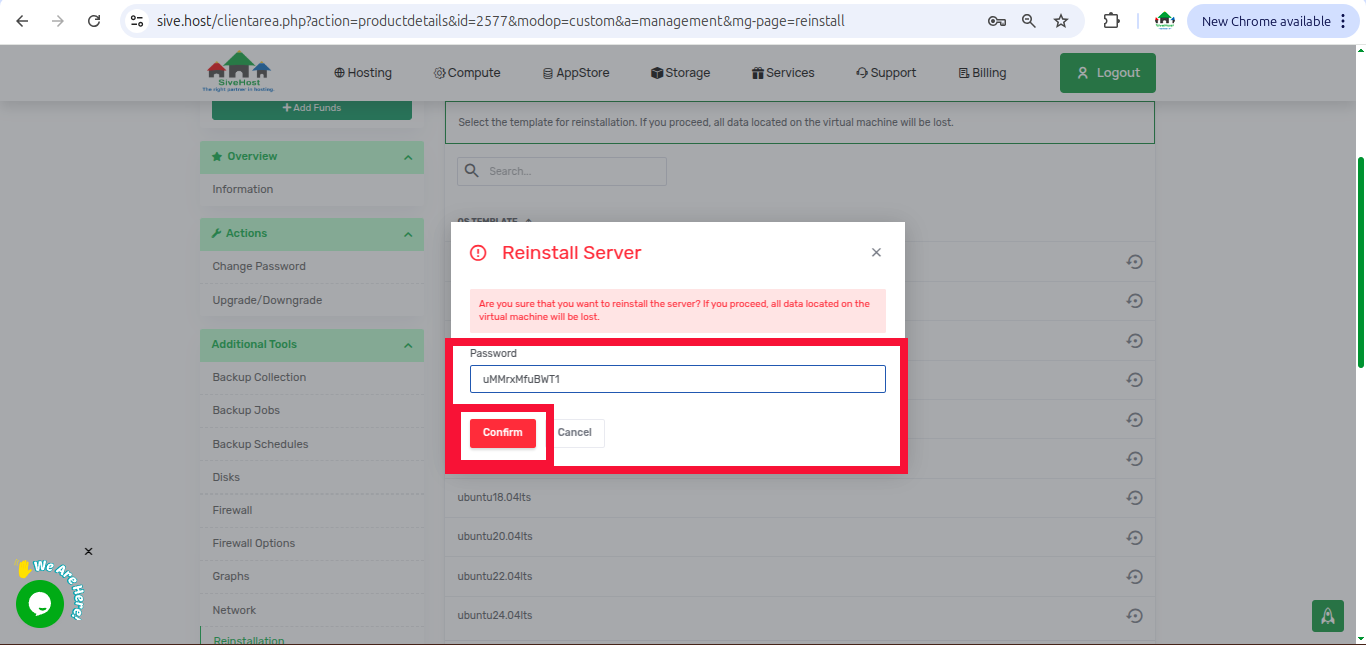
Step 5: Search or locate an operating system (OS) template you want the server to be reinstalled in and click on the circle that is on the far right of the OS you have chosen
Step 6: Fill in the password of the server then click on confirm to start the reinstallation. (If you want to add an application to the server, choose an app you want from the list on the drop-down. If not, leave the option as none
Step 7: Wait for approximately 10 to 15 minutes for the server yo finish reinstalling Na karabo ena e ile ya thusa?
